1Install and sign in
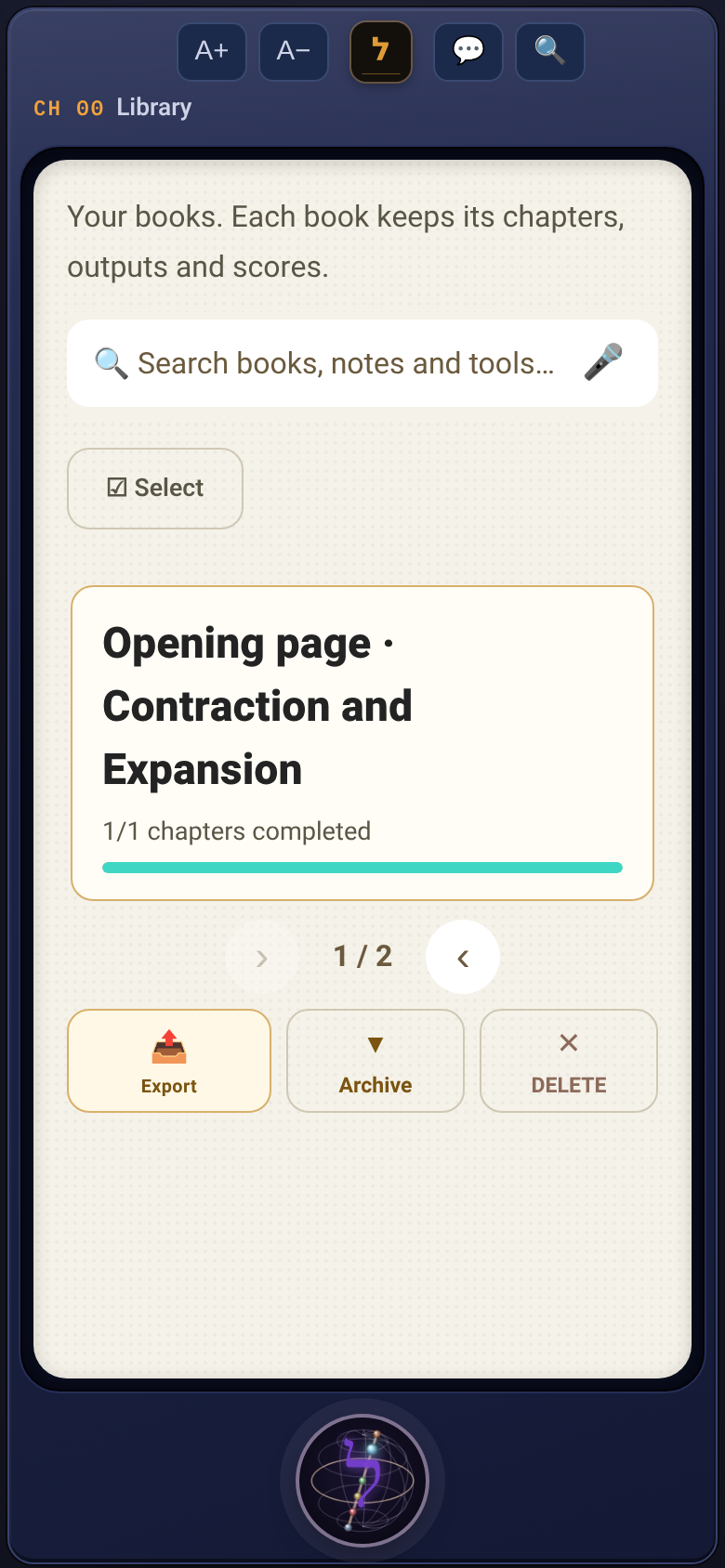
On iPhone, Lomed is installed from the App Store. On any other device, it is the very same app in the browser. The app opens with the sphere: forty-nine vessels are built, the sphere opens around them, and the ל and the bridge emerge from it. Then the home page opens. At the top of every screen: A+ and A−, the ל in the middle, and 💬 Daniel on the other side. At the bottom, in the centre, the ל sphere: the navigation of the whole app. More about it in the next step. And in the middle, on the light screen: your library. You sign in by email. In the sphere, under "Tools", tap ☁ Account, type your email, and type the 6-digit code that arrives. If you set a password, sign in with it.
 חשבון
2The ל sphere: navigation
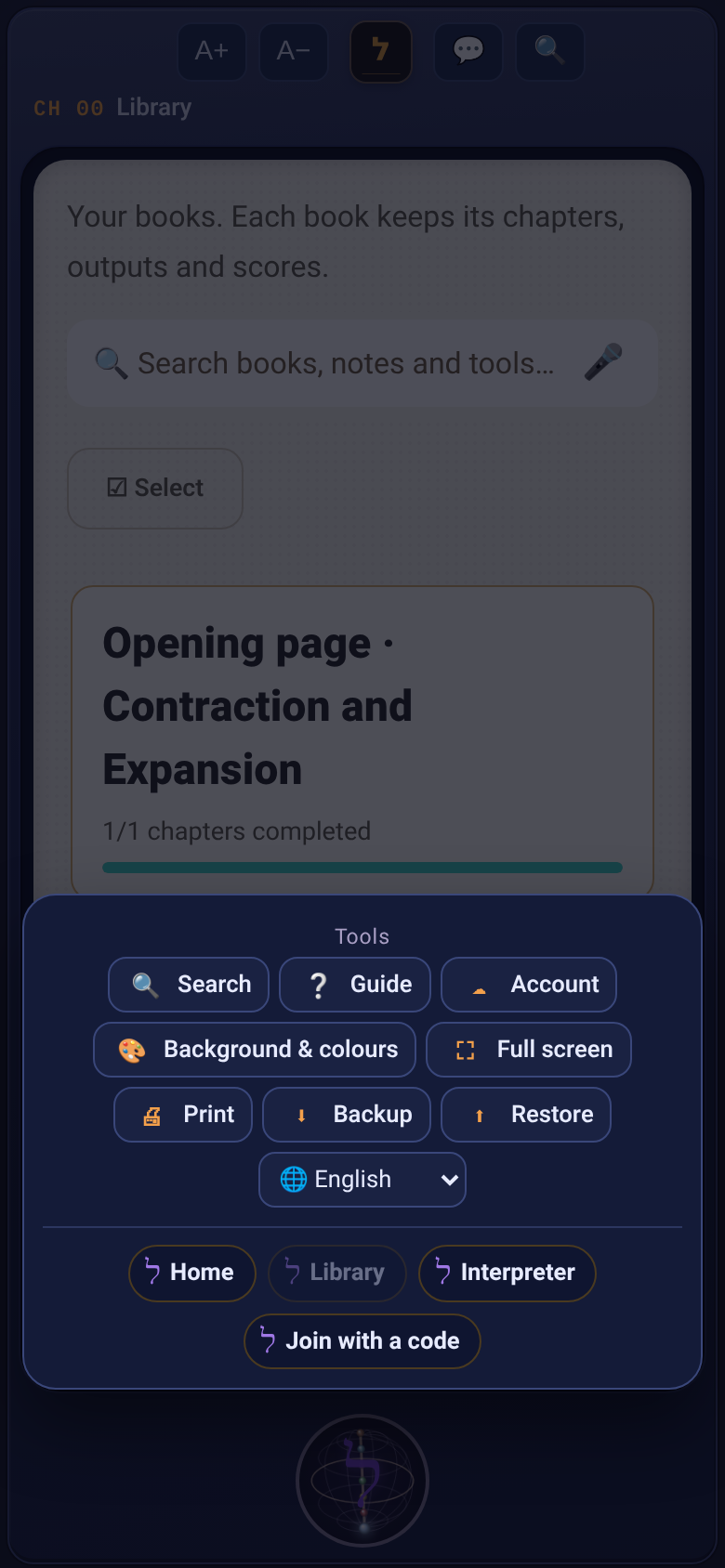
At the bottom of every screen there is a sphere: the opening sphere, in miniature. The seven sefirot light up along the diameter one after another, and the ל in the centre pulses: it contracts to a point and slowly expands back into the letter. Tap the sphere and a list opens. At its bottom, always the same navigation: ל Home, ל Library, ל Interpreter and ל Join with a code. Above it, under "Tools": search, the guide, your account, background and colours, full screen, print, backup and restore, and the language box. And on each screen its own actions come first: in a chapter, the channels; in the programme guide, Continue studying and the scroll; in the scroll, the bookmark and marking a passage. Tap outside the list to close it.
At the bottom of every screen there is a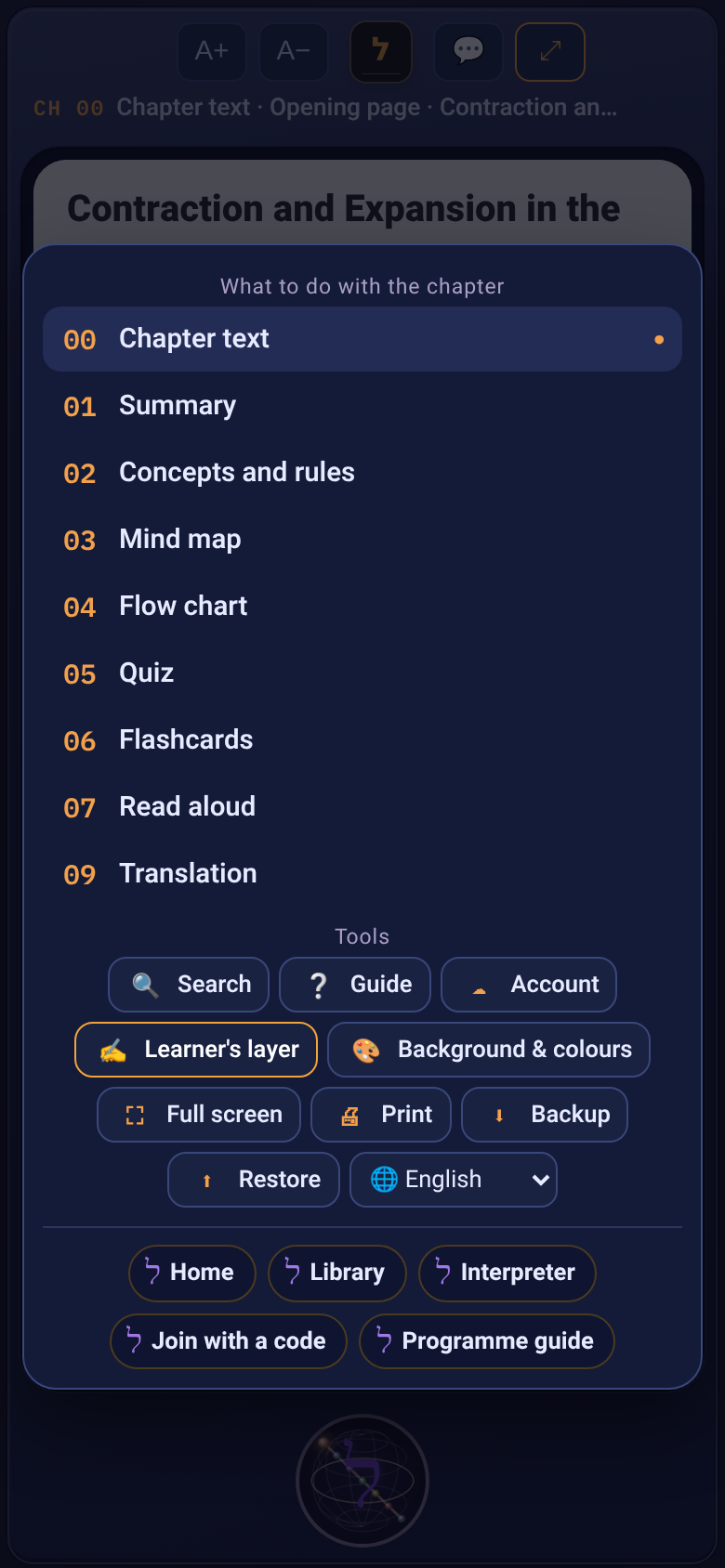 And on each screen its own actions come
3The home page: where it starts
The home page opens first, every time. Everything is on one screen, no scrolling. At the top, the broadcast: a short clip showing what turns into what, ending on a single sentence. Tap the broadcast, or the ? the owl points at, to open this presentation. Below it, the reality picker: 🌍 General, for any text you bring; 📜 Judaism & Kabbalah, with the bookshelf, the Zohar gate, the Aramaic dictionary and vowel points; ⚖️ Law, with summaries in a legal structure, terms and case questions. Choose one, and the screen reloads. Your books stay in every reality. And six gates: record a lesson, record video, photograph a page, file, YouTube, paste text. Tap a gate and it opens straight away. At the bottom, the ל sphere: ל Library, ל Interpreter and ל Join with a code. And from any screen, the ל in the top bar, or "ל Home" in the sphere, brings you back here — and the gates flash for a moment.
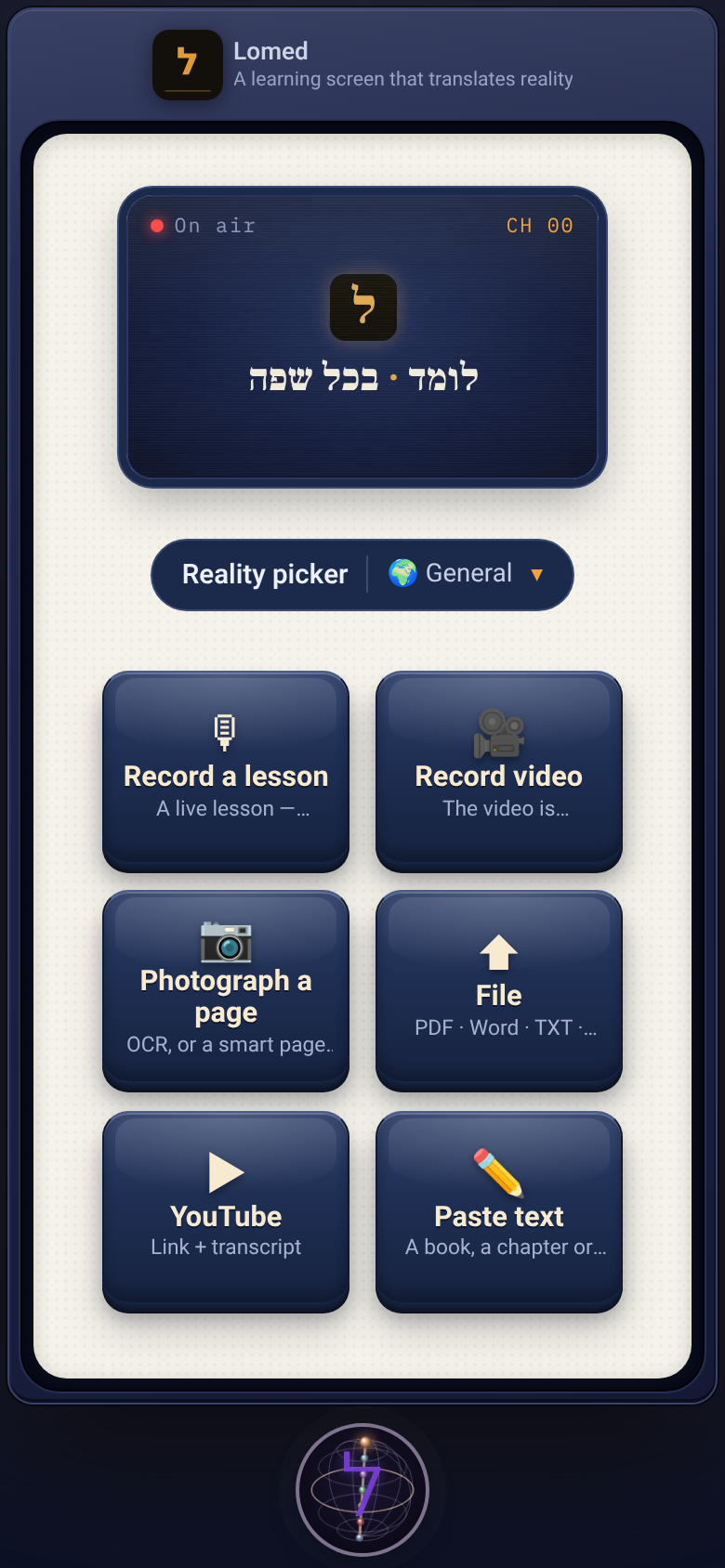 And from any screen, the ל in the top ba
4Your language, and the opening book
The app speaks seven languages: Hebrew, English, Arabic, French, Spanish, Russian and German. The language box is on the home page, and on every screen in the sphere, under "Tools". Pick a language and the whole interface changes: buttons, the sphere, messages. The choice is saved. An opening book is waiting in the library, "Contraction and Expansion in the Philosophy of Mind", in Hebrew and in English. You can try everything on it: summary, quiz, read-aloud, highlighting.
The app speaks seven languages: Hebrew, 5Bringing in a book: the gates
The gates are on the home page. From any screen you reach them through the sphere: ל Home. 🎙 Record a lesson: tap the big button and you're recording. Tap again to stop, and the recording is transcribed into a book. "📤 Send recording" sends the audio together with the text. 🎥 Record video: the camera opens; the video is transcribed and plays beside the text. 📷 Photograph a page: photograph a printed page and the camera reads it. More in the next step. ⬆ File: one button for every kind — PDF, Word or text, and audio or video too, which is transcribed. ▶ YouTube: a link and a transcript. It has its own step too. ✏️ Paste text: paste a book, a chapter or an article, and tap "▸ Broadcast text". In every gate, above the button, "📖 Study in:" — the study language. A book in another language is translated as it comes in, and the original is kept beside it. The text splits into chapters by itself.
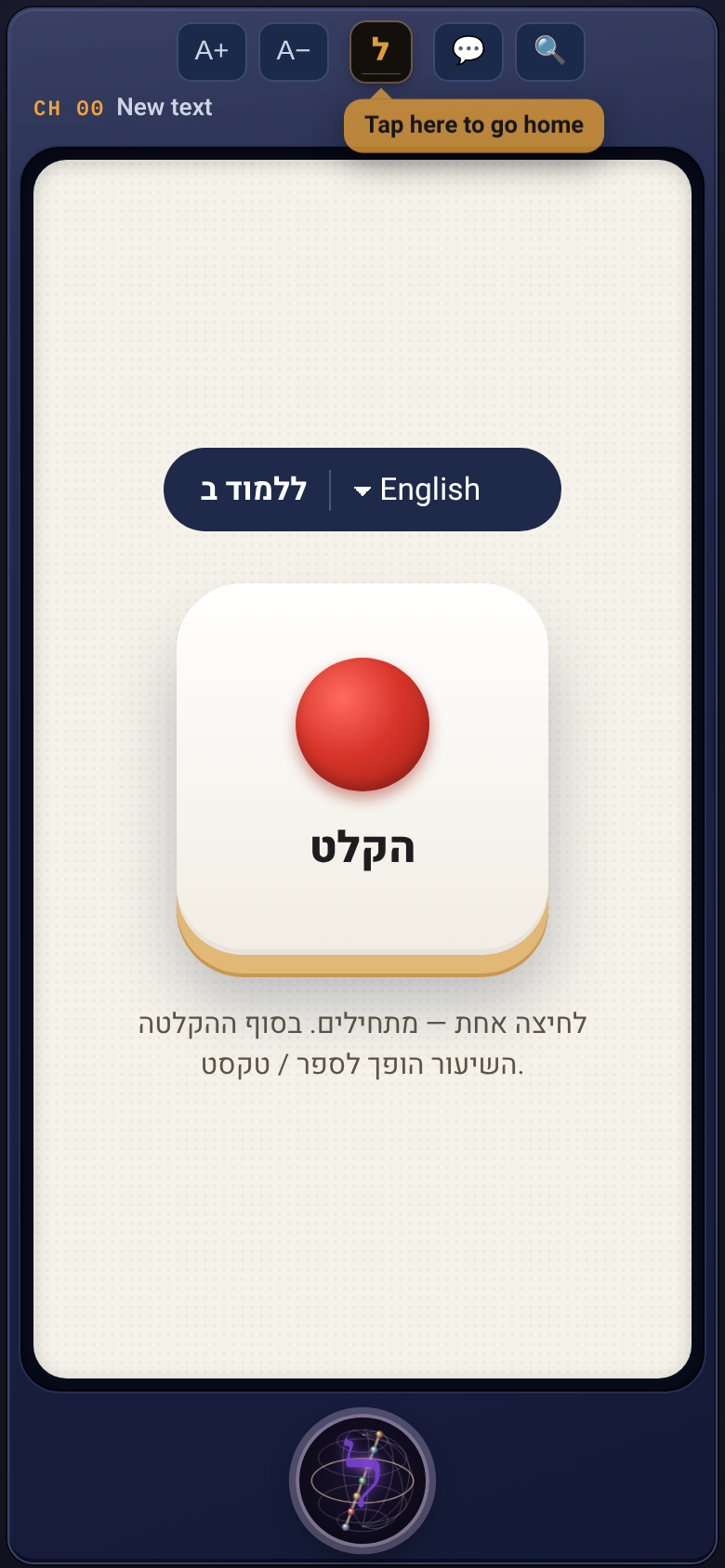 The gates are on the home page. From any
 🎥 Record video: the camera opens; the v
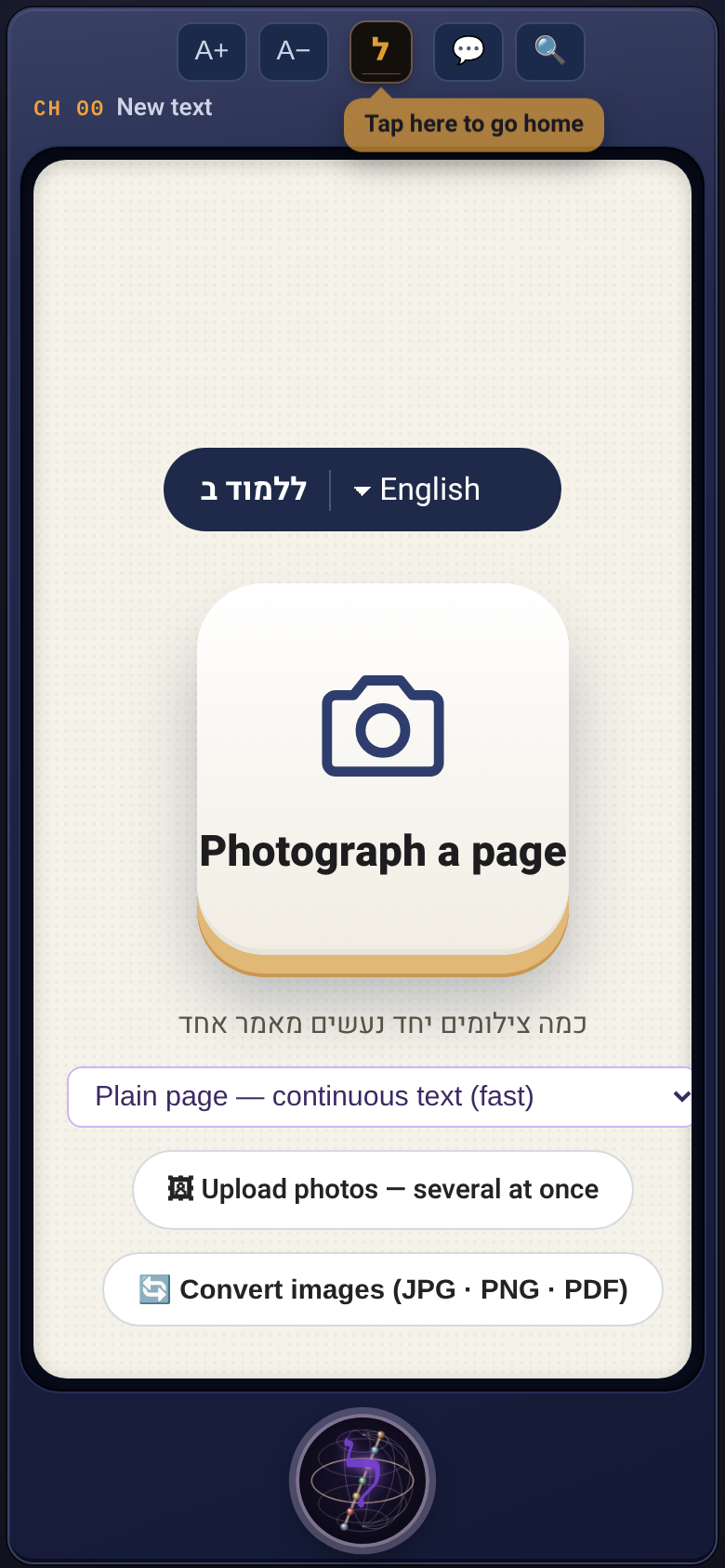 📷 Photograph a page: photograph a print
 ⬆ File: one button for every kind — PDF,
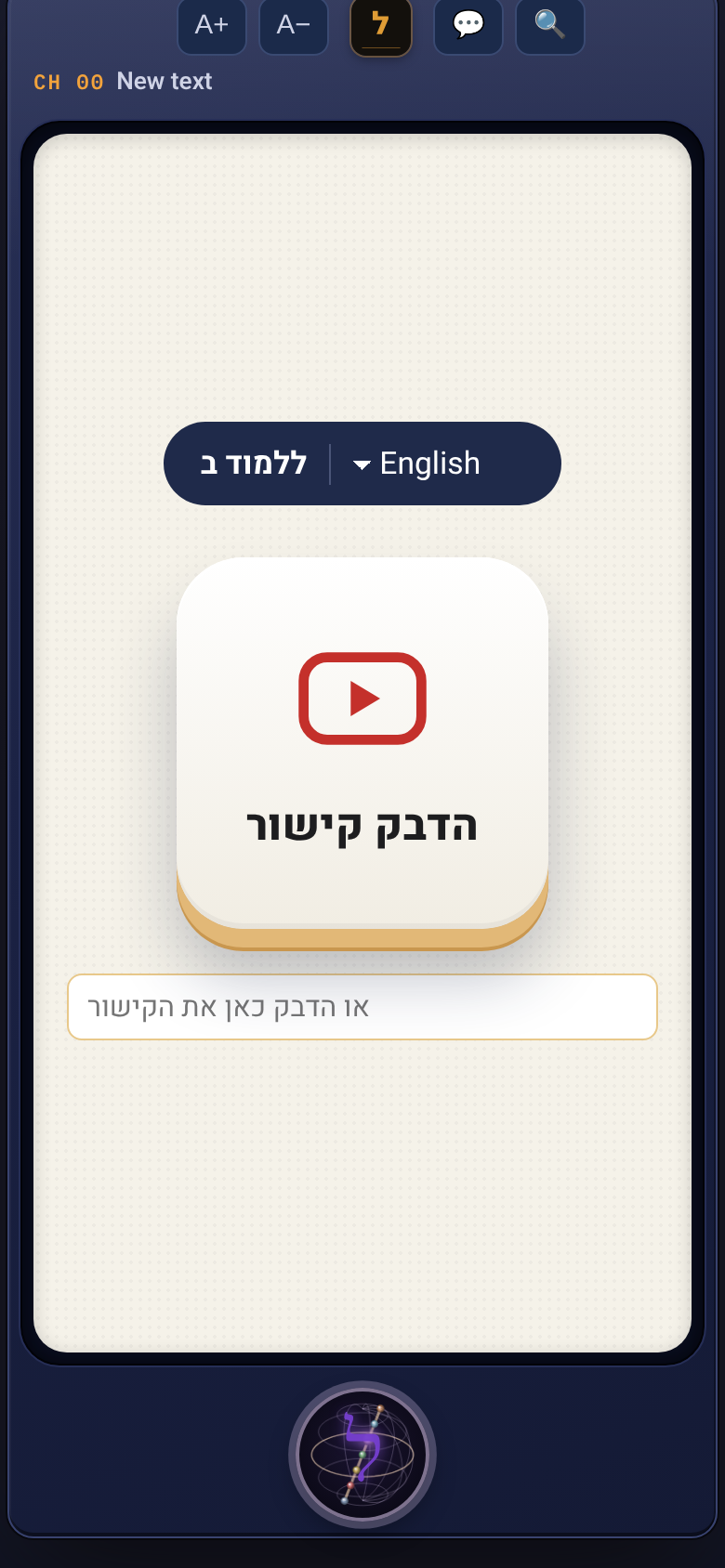 ▶ YouTube: a link and a transcript. It h
 ✏️ Paste text: paste a book, a chapter o
6Photographing a page: plain or smart
📷 Photograph a page: tap the gate, and the camera button is in the centre of the screen. Below it, the template: what the page is. "Plain page" reads an ordinary printed page: continuous text, quickly. Photograph page after page, and all the photos go into one book. For pages with a commentary: "Combined" — source with its commentary beneath, or "Separate layers" — source and commentary one after the other. The page is split into layers, and the commentary goes under the source it explains. "🖼 Upload photos" brings in several photos at once, as one article in the order they were taken. The reading runs in the background; on the phone the screen stays awake until it's done.
7The YouTube gate
▶ YouTube: tap the gate. At first there is only a button and a field for the link. Tap "Paste link", or paste into the field. As soon as there is a link, the lesson name and the transcript box open. And the transcript: on YouTube, below the video, "more", then "Show transcript". Select all, copy, and paste into the box. Then "Make a book". The transcript becomes a book with chapters, and the video itself plays on the schedule board and on the reading screen, beside the text.
 Tap "Paste link", or paste into the fiel
8The schedule board
Press a book in the library, and you reach the schedule board: the list of the book's chapters. Tap the sphere: "Continue studying" opens the next chapter you haven't studied yet, "Scroll" opens the whole book in one flow, and "Learning together" invites a friend to the same page.
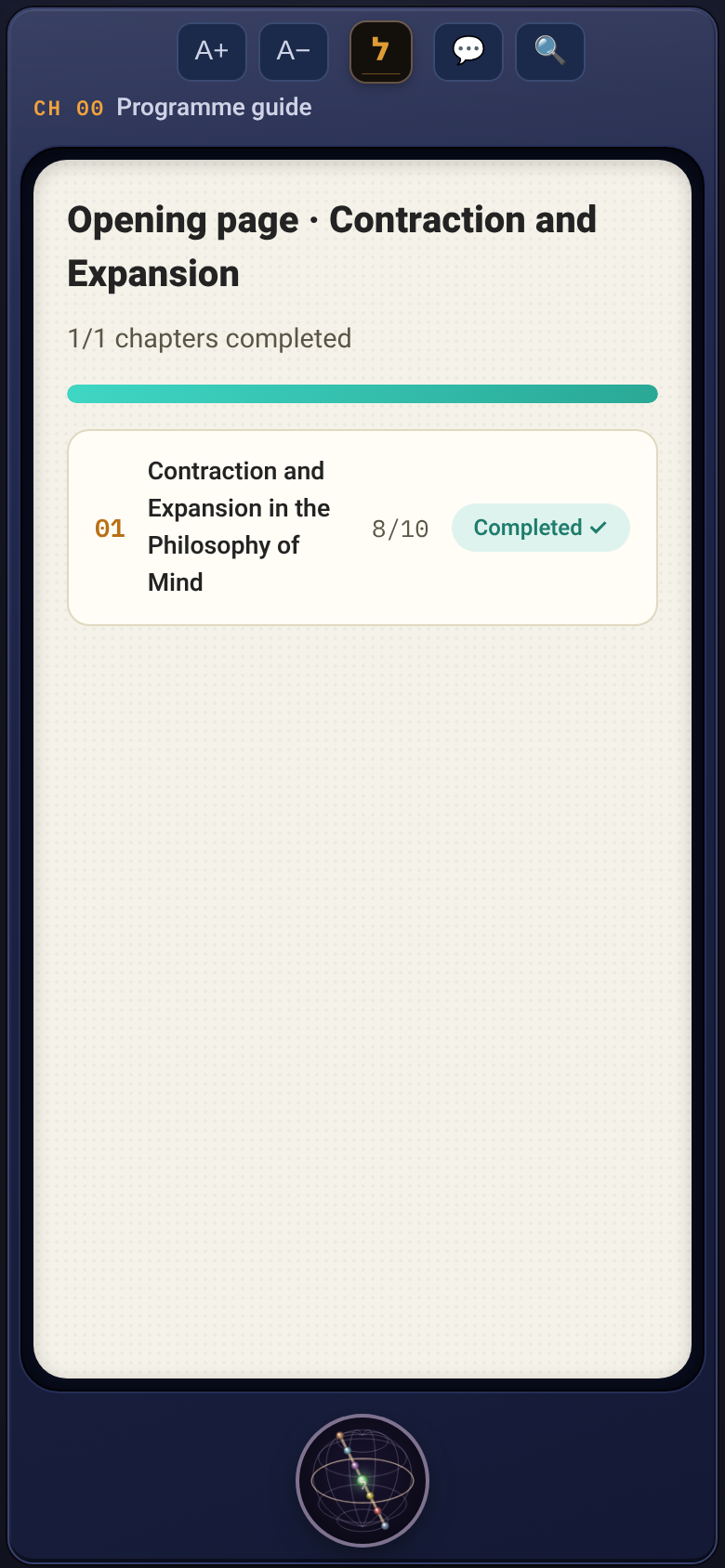 Press a book in the library,
 Tap the sphere: "Continue studying" open
9The channels: what to do with a chapter
Open a chapter and tap the sphere: nine channels head the list. Each channel is produced once and saved with the book. The open channel is marked with a dot, and CH with its number is shown at the top. Zero-zero, Chapter text: the page itself, for reading and marking. Zero-one, Summary: a long and a short summary of the chapter, and below them what the chapter gives to the question you carry. This is what the summary looks like. And in the sphere, under "Tools", 📤 Share the output sends it on — to WhatsApp, email or Notes. It appears in every channel that has an output. Zero-two, Concepts and rules: the chapter's concepts with a definition, and the rules that come out of it. This is how it looks. Zero-three, Mind map: the chapter as a map. The topic in the middle, the branches around it. Tapping a branch opens or closes it, and you can drag the nodes. Zero-four, Flow chart: the course of the chapter, step after step, with an arrow between steps. Zero-five, Quiz: choose how many questions, and you get multiple-choice questions on the chapter, four answers each. Tap an answer. The answer is coloured, and below it an explanation of why it is right or wrong. At the end the score is saved and the chapter is marked as completed. Zero-six, Flashcards: a question on one side, the answer on the other. This is what the cards look like. Tap a card, and it flips to the answer. Zero-seven, Read aloud: the chapter is read out, karaoke style. And zero-nine, Translation: the chapter in another language, sentence against sentence. Each has its own step later on.
 This is what the summary looks like.
 שתף את התוצר
 Zero-two, Concepts and rules: the chapte
 Zero-three, Mind map: the chapter as a m
 Zero-four, Flow chart: the course of the
 Zero-five, Quiz: choose how many questio
 The answer is coloured, and below it an
 Zero-six, Flashcards: a question on one
 Tap a card, and it flips to the answer.
10Translation: the chapter in your language
Channel zero-nine, translation: choose a target language, and the chapter is translated sentence by sentence. The translation is saved with the book, and from then on opens at once. When the book is written in a language other than the interface, the reading screen shows the row "The page in my language". "Beside the original" shows the translation under every sentence, "Translation only" replaces it. Your marks and notes stay on the sentence, in both languages. In learning together, each participant sees the page in their own language. Who pays for the translation — the host decides: at their expense, each for themselves, or the guest.
 When the book is written in a language o
11The learner's layer: marking and noting
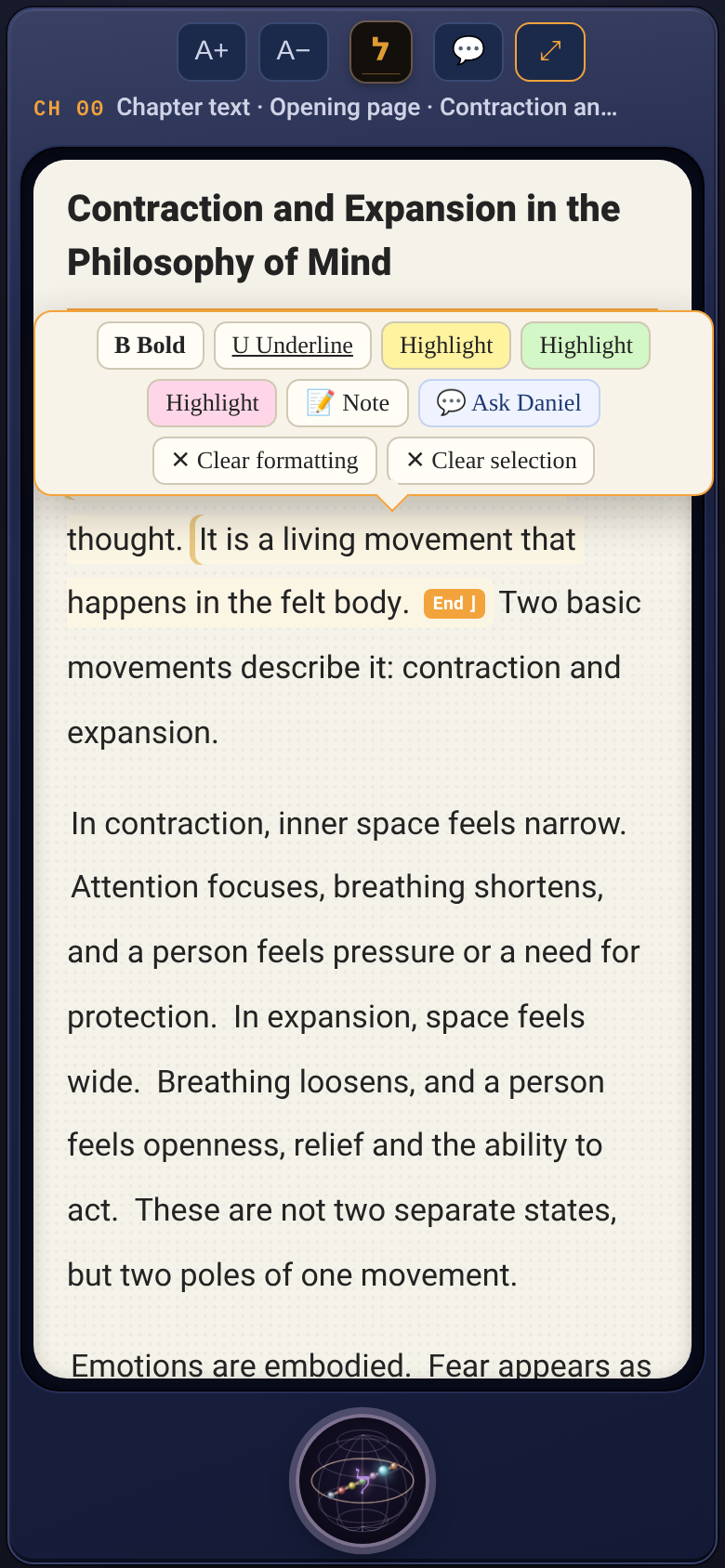
In the chapter text, drag over a word or a few words, and a tab opens above: highlighter in three colors, bold, underline, and a note. For a whole passage: click the first sentence, and a "Start" label appears. Hover or touch a later sentence and you see the passage that will be chosen. A second click closes the passage with an "End" label, and a third click starts a new one. The note is written, or spoken aloud. Notes are numbered in the margin, and saved to the cloud. The same layer works on the summary, concepts and flashcards too. In the sphere, under "Tools", ✍️ Learner's layer shows or hides it.
 שכבת הלומד
12Read-aloud as karaoke
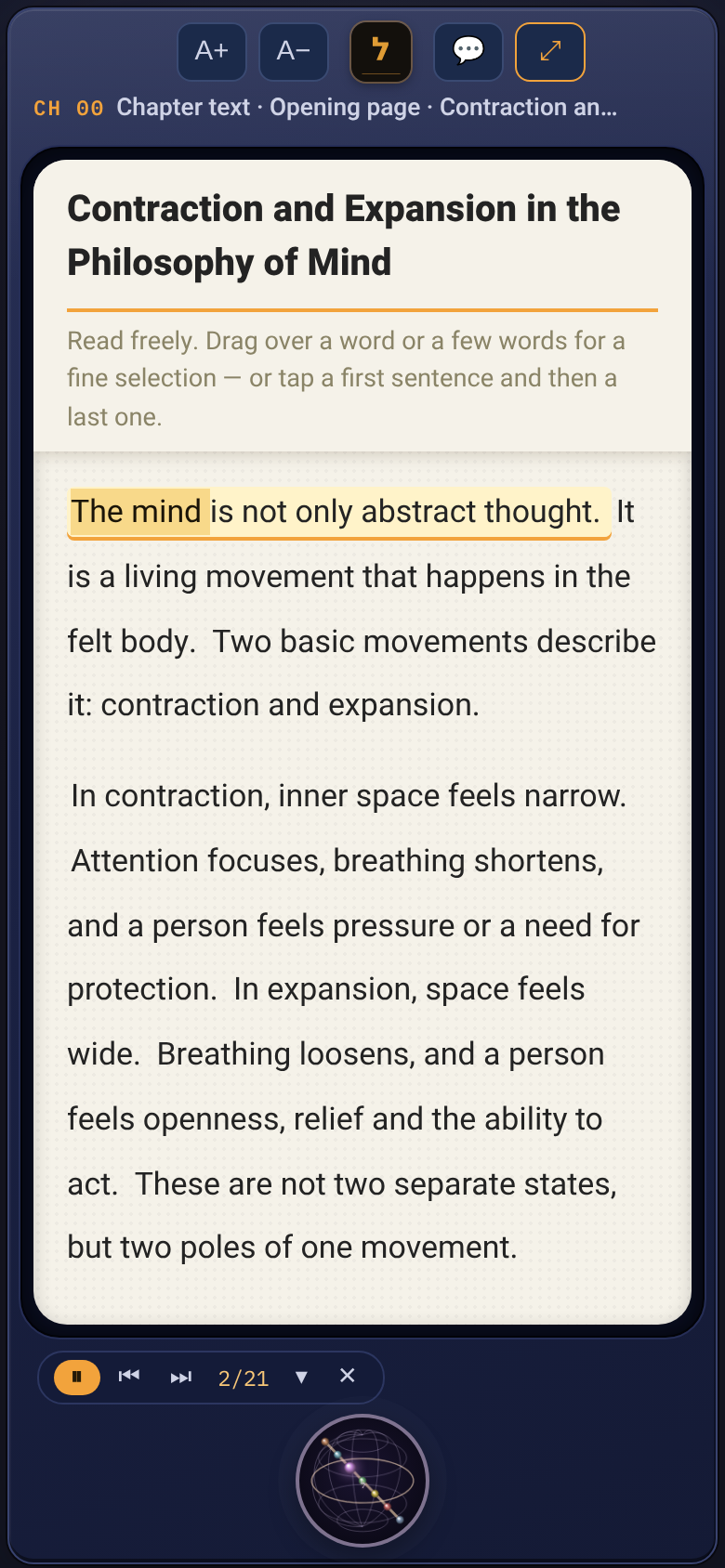
Tap the sphere and choose zero-seven, Read aloud. The page stays, and a small player appears above the sphere. ▶ starts. The sentence being read is lit, the words already read fill with color, and the page glides continuously, so the line being read always stays at the same height, a little above the center of the screen. Clicking a sentence on the page starts from it. The ▾ arrow opens settings: pace, and the highlight color.
הקראה13⤢ The reading screen
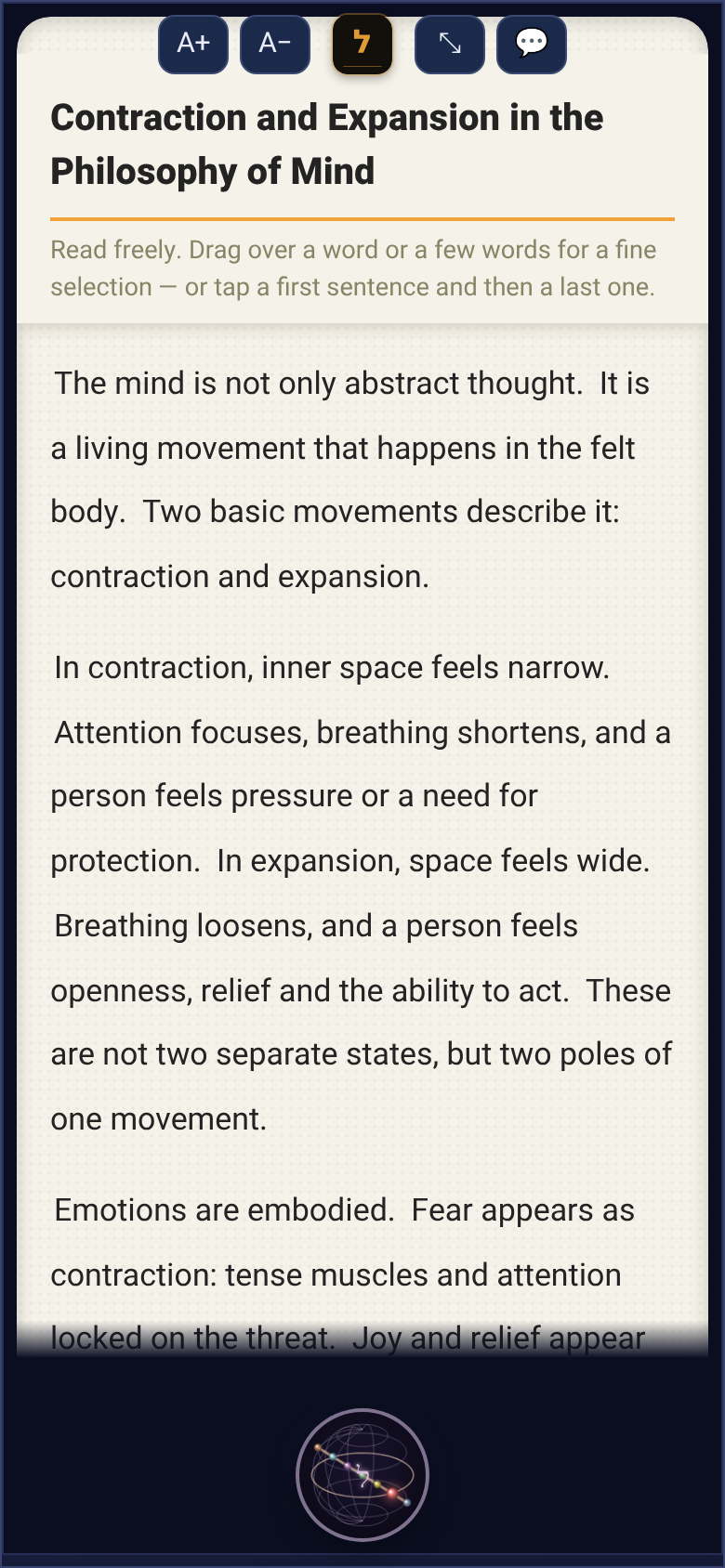
⤢ in the top bar opens the reading screen: only the content, on the whole screen. The chapter name and the short hint stay fixed at the top; only the text scrolls beneath them, and it stops just above the sphere. At the top, on both sides of the ל: A+ and A−, 💬 Daniel, and ⤡ back to the normal screen. And the sphere floats at the bottom, with all the channels and the navigation.
 מסך קריאה
14The scroll: the whole book in one flow
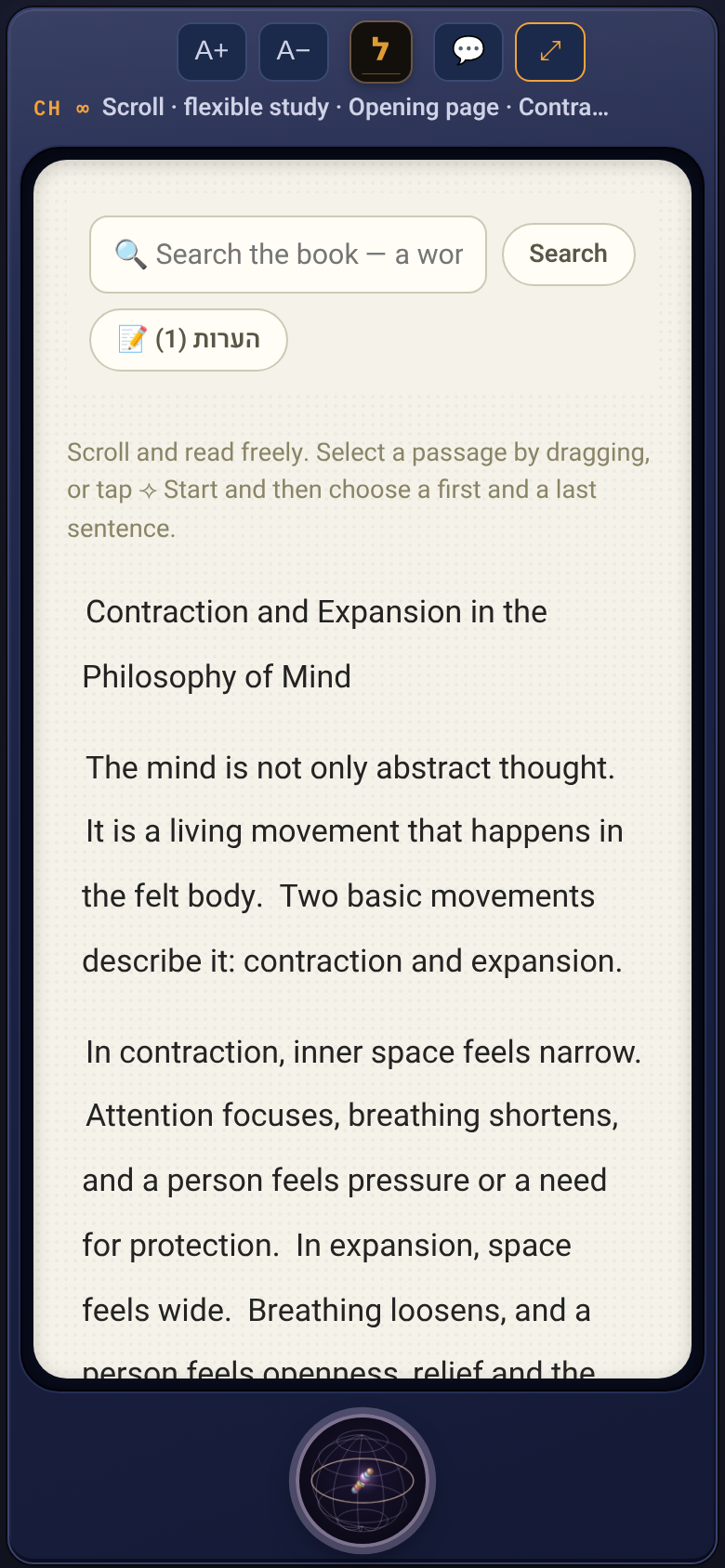
From the programme guide: in the sphere, "Scroll — flexible study". The whole book in one continuous scroll, with the same highlights and notes. Search in the book and the notes stay at the top, in the header. In the sphere: a bookmark, "I read up to here", start and end of a passage to mark it, and flexible study: mark a passage, and golden keys above the sphere produce a summary, concepts or a quiz on it.
 מגילה — לימוד גמיש
 סימנייה — עד כאן קראתי
15Search: a word, a topic or a tool
The magnifying glass in the library's top bar, or "Search" in the sphere, opens search. Type a word, and the search goes over everything: the text of the books, the titles, your notes, the summaries and other outputs, and the books in the archive too. The search is forgiving: beginnings of words, prefixes, and in Hebrew also vowel points and spelling variants. Clicking a result opens the book at the sentence itself. You can also search for a tool by name: "recording", "export", "translation", "learning together", "delete account". The result leads straight to it. The microphone beside the box: speak instead of typing. The language box sets which language it listens in.
16The library: the screen and the archive
The library is your screen: one book in the centre, and you swipe between books, or use the arrows. Search stays at the top. "▾ Archive" moves the book in the centre to the archive — it is kept, just off the screen. The archive is below, with the number of books in it. 📌 beside a book in the archive brings it back to the screen. ☑ Select: the books are shown as a list. Tick several books, or "Select all", and move a whole group to the archive, or back to the screen. Deleting is different: ✕ Delete, then "Sure?", deletes the book, its notes and its outputs, from the cloud too.
17Reflection: hearing your own notes
After three highlights or notes in a book, 🎧 Reflection appears beside it in the library. Two voices, a teacher and a student, talk about what you marked and wrote. First you read the script, then you produce the voice. The file is saved beside the book for listening again.
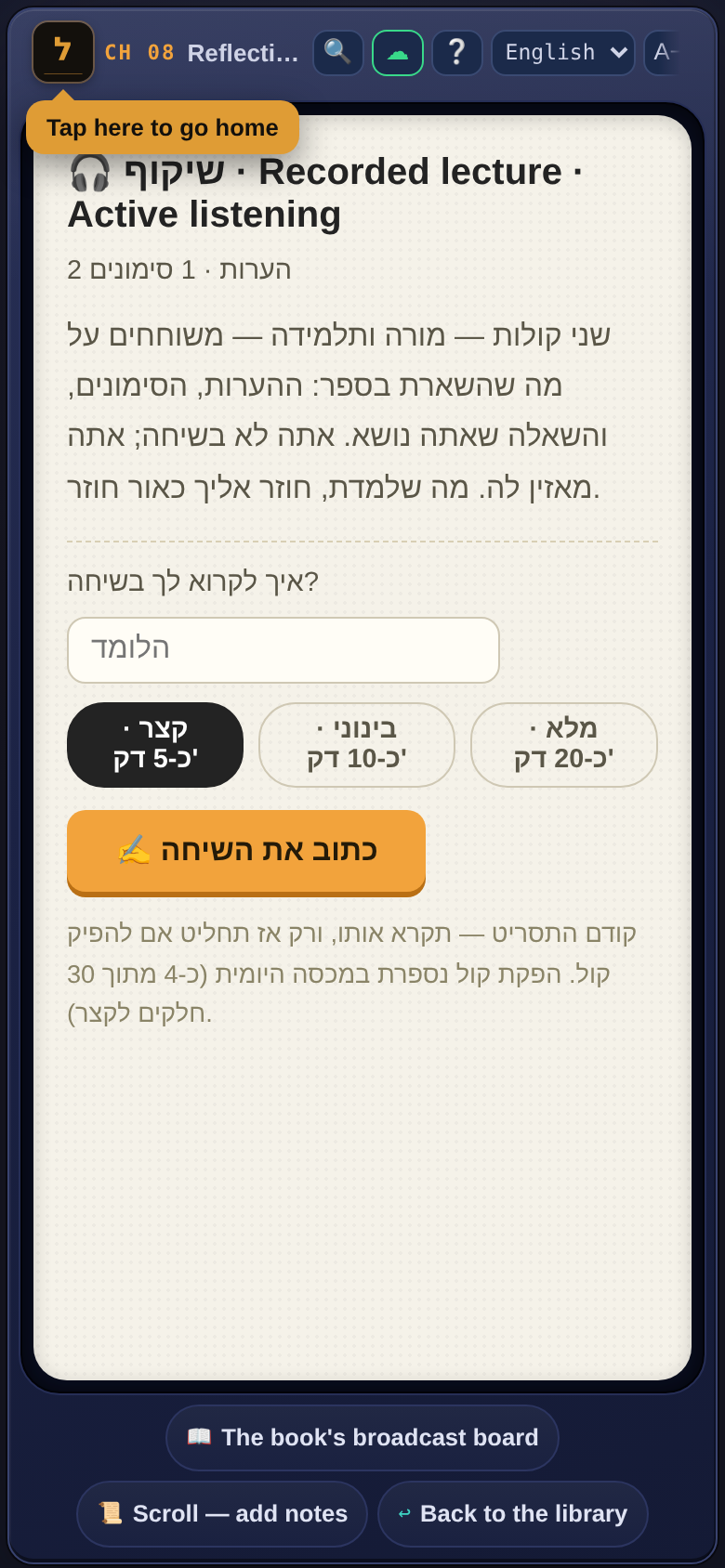 After three highlights or notes in a boo
18Learning together
From the programme guide: in the sphere, "Learning together". You get a code and a link. Send it to a friend, and they open the same page on their side. 🔗 Invite copies the link; on the phone it opens the share sheet: WhatsApp, email, message. The friend clicks the link and lands straight on the page, even without an account, as a guest. Whoever holds the page scrolls and the other follows; "Free" releases, "Take the page" hands it over. Each person's highlights and notes appear on the other's screen in their own color. 📹 opens video and voice inside the page.
לימוד משותף19🗣 Interpreter: two languages, one phone
In the sphere: ל Interpreter. The screen splits in two: half for each person, face to face. Each side picks its own language. Tap "Speak" and talk. When you finish, the sentence is translated, shown large on the other side, and read aloud in their language. ⇅ turns the top half: towards me when I hold the phone, or towards the person opposite when the phone is on the table. 🔊 turns the sound off and on. And the sphere sits in the middle, between the two sides: from there you go anywhere.
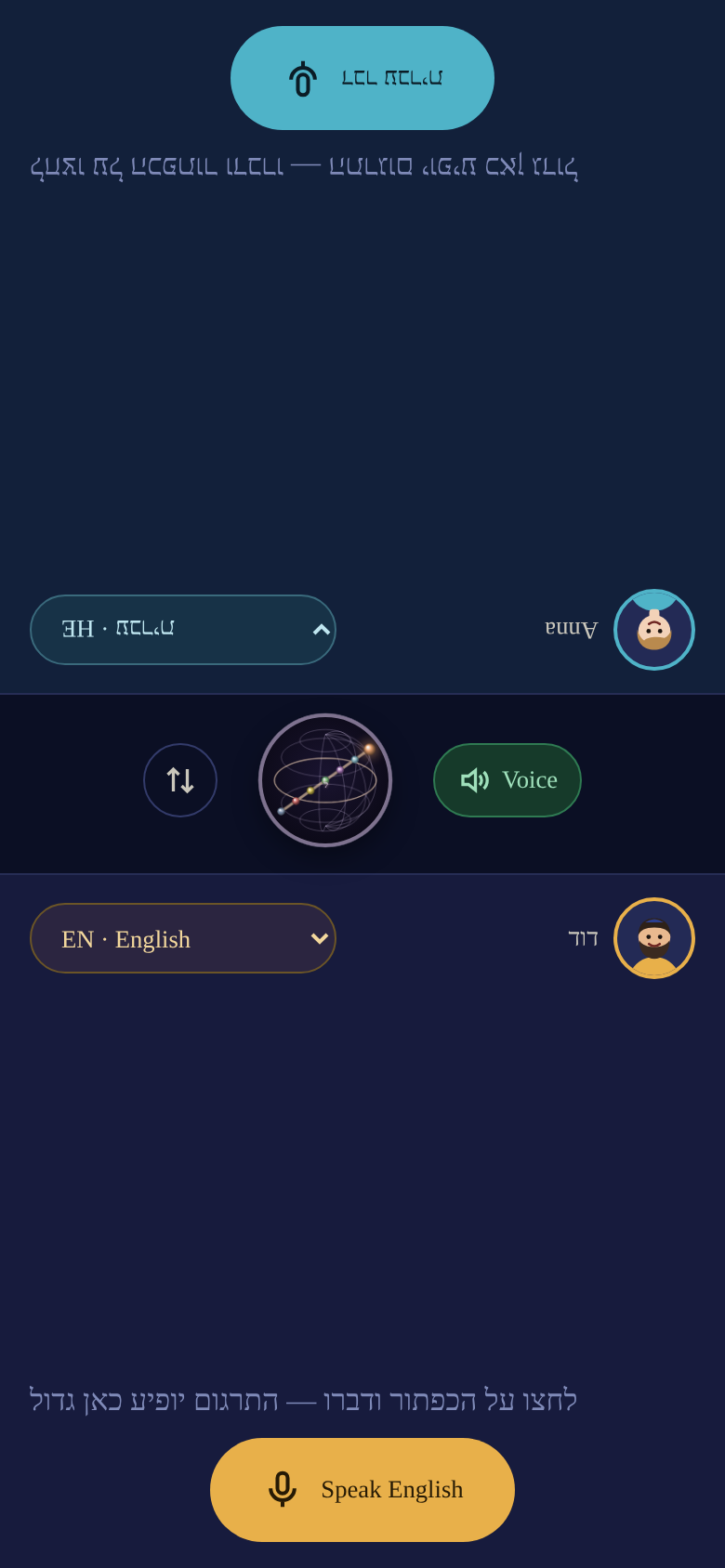 מתורגמן
20Export: the book as a file, and the images as a PDF
In the library, below the book in the centre, 📤 Export. The book comes out as a Word file, with the chapters as headings, or as plain text. You can include the outputs and notes too. The second tab, images and pages: choose photos, including HEIC from the iPhone, and they become JPG, PNG, or one PDF, a page per image, in order. The same conversion is also in the Photograph-a-page gate, "Convert images", without creating a book at all. Everything happens on the device; nothing goes to the cloud. On the phone the file opens in the share sheet: WhatsApp, email, Files. On the computer it goes to the Downloads folder. A book made from a live lesson recording also keeps the recording itself on the device: 🎙 Recording beside it sends it along with the text. The recording stays only on the device where it was recorded.
The same conversion is also in the Photo21The buttons at the top, and the tools in the sphere
At the top of every screen, only what you always need: A+ and A− make the text bigger and smaller, the ל in the middle goes back home, 💬 Daniel, the assistant, and ⤢ the reading screen. Everything else is in the sphere, under "Tools": 🎨 background and colours, ⛶ full screen, 🖨 print, ⬇ backup and ⬆ restore, ✍️ the learner's layer, 📖 the Aramaic glossary and בְּ vowel points, 🔍 search, ❔ the guide, ☁ your account, and the language box.
רקע וצבעים22☁ Your account
In the sphere, under "Tools", ☁ Account opens your account. When sync is on, every highlight, note, output and score is saved in the cloud too. On a new device: sign in with the same email, and "Download the books from the cloud" brings everything. From then on, the ongoing sync does the work. "Sign out" leaves the account on this device. "Delete account and all data" erases from the cloud the account and everything kept under it: books, notes, outputs, voice files. No way back. The cloud window also holds the reality picker: 🌍 General, 📜 Judaism & Kabbalah or ⚖️ Law — the same picker as on the home page. The link to the privacy policy is in the same window.
חשבון23💬 Daniel, the assistant
💬 in the top bar opens Daniel, the assistant inside Lomed. Ask him anything, by typing or by voice: press the microphone, speak, and he answers. 🔊 reads the answer aloud. Daniel knows where you are: the book, the chapter, the sentence you marked, and your notes. Mark a sentence and press “Ask Daniel” in the marking bar, and the question is already about that sentence. But he is not limited to the book: a poem, an email, a translation, an idea, code. Every answer can be kept: 📝 as a note in the book, 🃏 as a flashcard for the chapter, 📖 as a new book to study, or 📤 sent onward. 🧠 Deep thinks harder; ⚡ Fast answers at once and costs less. Use is measured by what you consumed: the wallet in the account window shows the balance, and every new learner gets an opening wallet. When it runs out you top up, and nothing else in the app stops: books, notes and reading are always free.
דניאל24What to try
You don't have to do everything. But if you go through these, we'll learn a lot. Tick off what you did — the ticks are saved only in your browser.
25Tell us
A few short questions. What you write goes straight to Haim. You can fill it in several times, at any stage.